
Pomelo 0.32 · 2026-10-20
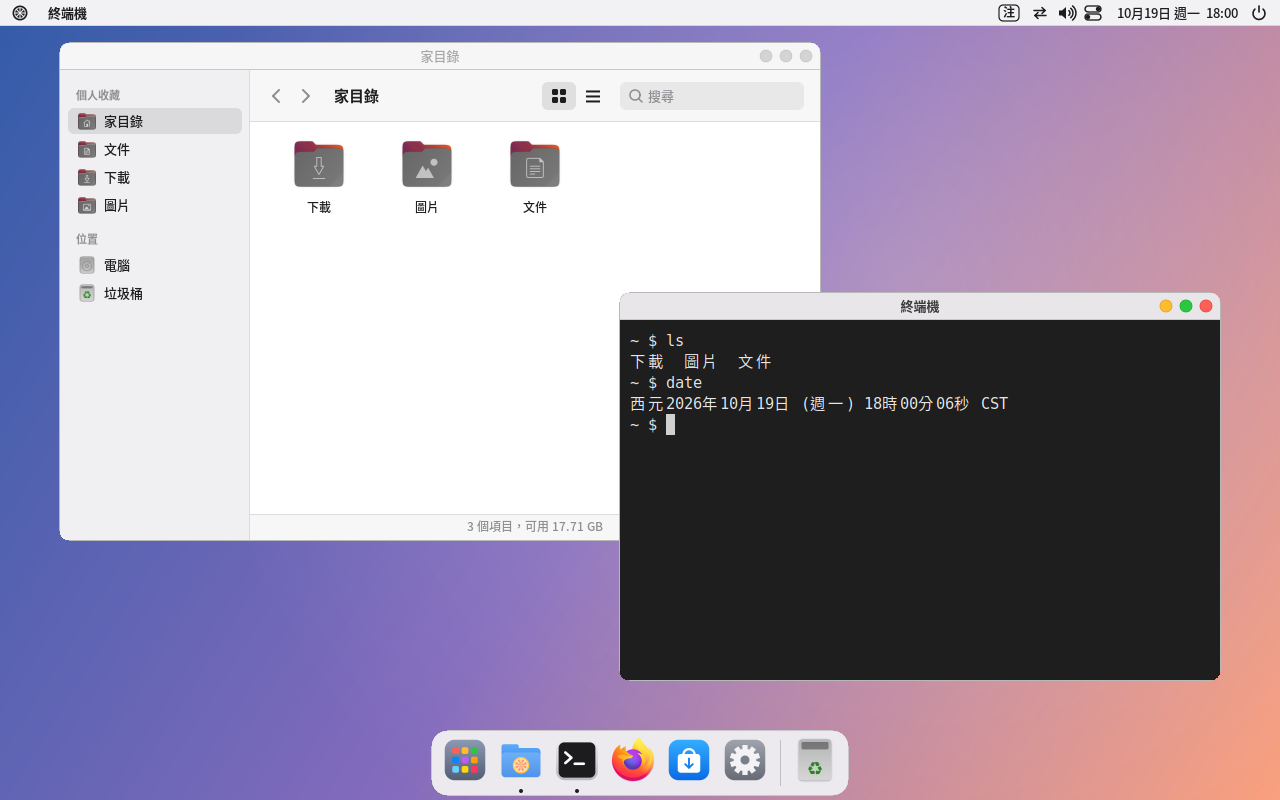
Pomelo is a lightweight, resource-friendly X11 desktop. It includes:
- A top menu bar, Dock, launcher and search.
- Settings, a file manager, terminal and text editor.
- A calculator, image viewer, media player and PDF reader.
- A Zhuyin input method, screenshots and screen recording.
- The AI assistant "Pomi", and its own login screen.
The whole desktop runs without GNOME and uses only a few dozen MB of memory when idle.
This manual explains how to install, use and remove Pomelo on Ubuntu.
1. System requirements
- Computer: 64-bit x86 PC (amd64).
- Memory:
- 2 GB or more.
- 8 GB or more is recommended for the Pomi assistant; the light model uses about 1.3 GB while running.
- Display: X11 (Xorg). Pomelo does not support Wayland; Xorg is installed automatically.
- System version: Ubuntu 22.04, 24.04 or 26.04. Each version has its own package; download the one whose file name matches your system.
Check your version:
lsb_release -d
2. Installation
Extract the package and go into the extracted folder:
tar xzf pomelo-0.32-ubuntu24.04-amd64.tar.gz      # use the file name you downloaded
cd pomelo-0.32-ubuntu24.04
sudo apt install ./*.deb
For the most minimal install (no recommended packages):
sudo apt install --no-install-recommends ./*.deb
Installing does not replace your current desktop or login screen. Your old desktop is still there, and you can choose which one to use when you log in.
Upgrading: download the new package and install it with the same commands. Your settings are kept.
3. First login
With your existing login screen
Log out, then choose the "Pomelo" session on the login screen:
- GDM (Ubuntu's default): click your user name, click the gear icon at the bottom right, choose "Pomelo", then enter your password.
- LightDM, SDDM: choose "Pomelo" from the session menu on the login screen.
The login screen remembers your choice and goes straight to Pomelo next time.
Switching to the Pomelo login screen (optional)
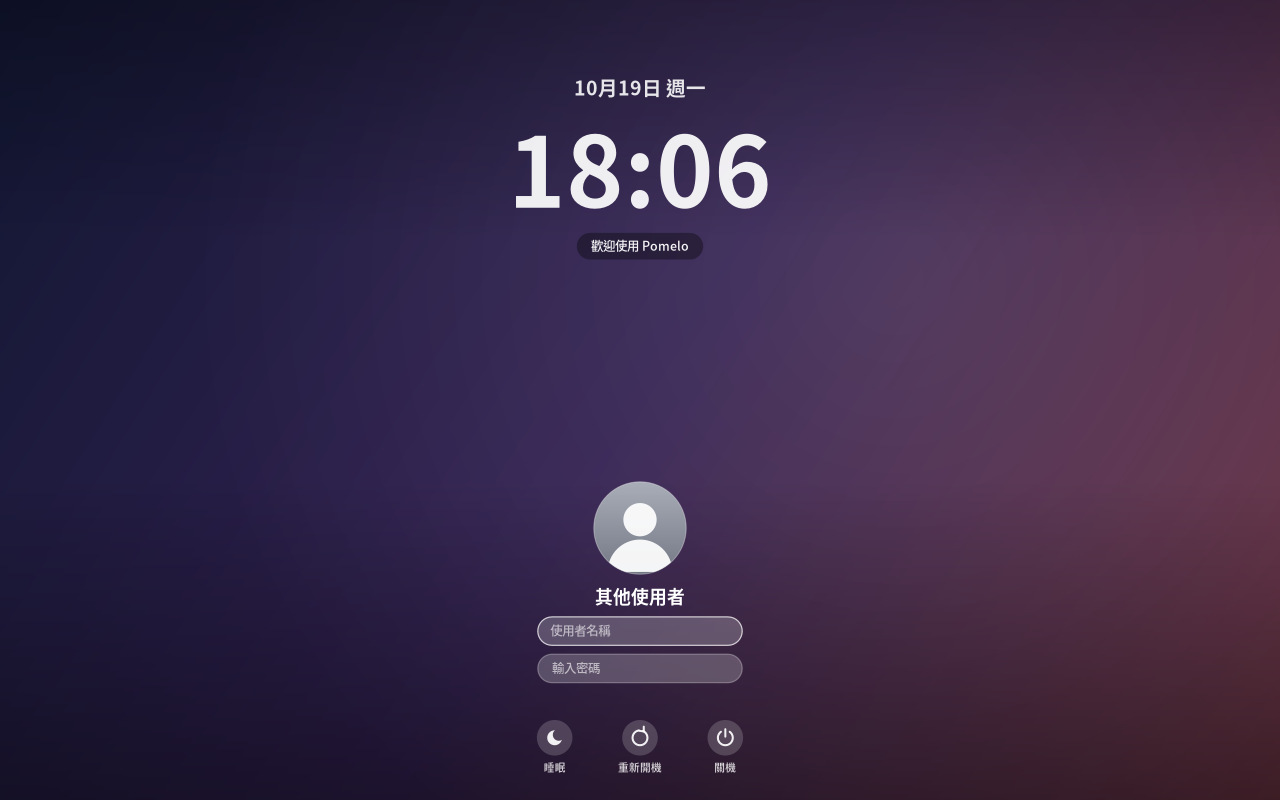
Pomelo has its own login screen: a big clock, your avatar and your wallpaper as the background, using only about 2 MB of memory. Always try it first before switching:
sudo pomelo-dm-switch try      # try a Pomelo login screen on Ctrl+Alt+F7 without changing any settings
sudo pomelo-dm-switch on       # everything works: use it from now on
sudo pomelo-dm-switch off      # switch back to the original (GDM, LightDM, SDDM)
If you can't log in:
- Press Ctrl+Alt+F3 and log in on the text console.
- Run
sudo pomelo-dm-switch off. - Run
sudo rebootto restart.
The login screen's background, clock, text size, whether to show the user list, automatic login and the message at the bottom are all set in "Settings → Login Screen".
4. Getting to know the desktop
- Menu bar (top of the screen)
- Pomelo icon at the far left: About This Computer, Settings, Lock Screen, Sleep, Shut Down and more.
- You can edit this menu: right-click the icon → "Edit Menu…".
- Add your favorite apps, websites or commands.
- Name of the current app: click it to minimize, maximize or close the window.
- Status area on the right: input method (Zhuyin / English), external devices, network, volume, battery, clock and Control Center.
- Control Center quickly toggles Wi-Fi, Bluetooth, dark mode and Do Not Disturb, and adjusts brightness and volume.
- Pomelo icon at the far left: About This Computer, Settings, Lock Screen, Sleep, Shut Down and more.
- Dock (bottom of the screen)
- Holds pinned apps and running apps.
- Right-click an icon to keep it in the Dock or remove it.
- The Trash is at the far right.
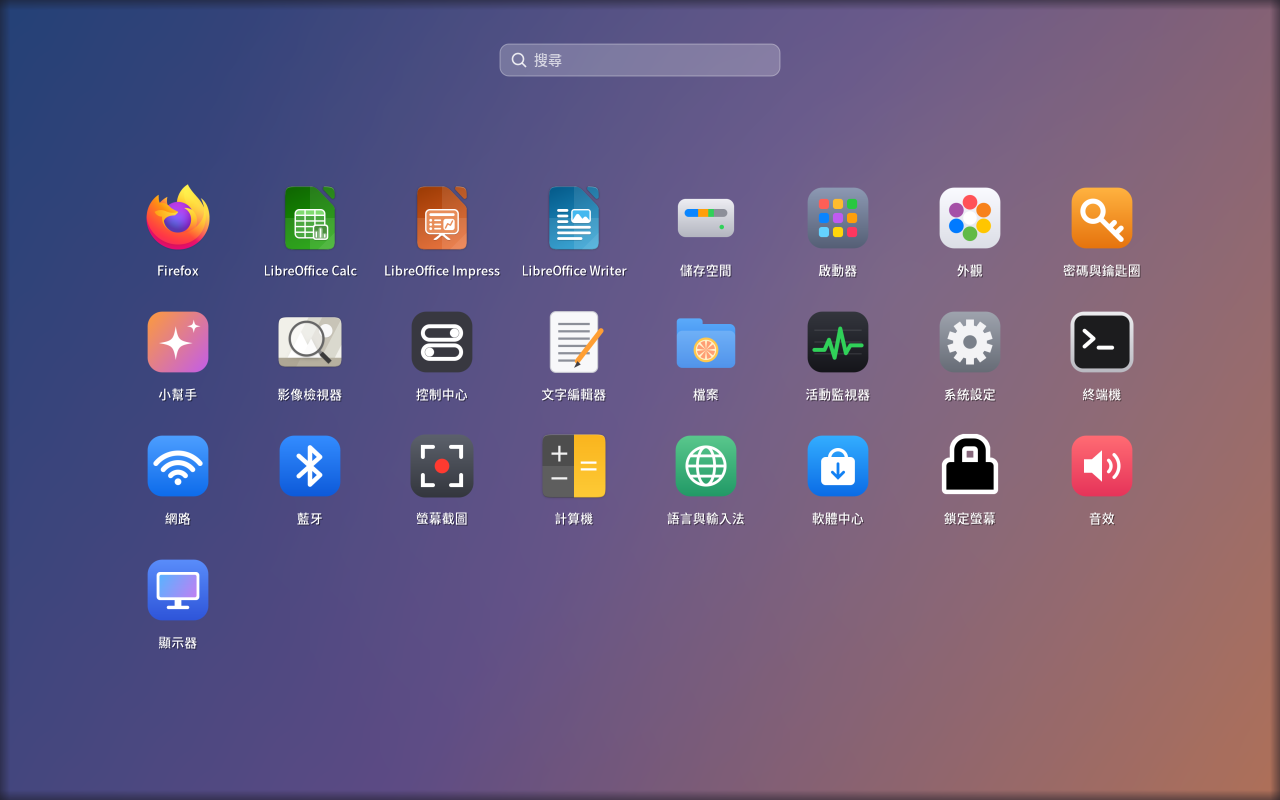
- Launcher (Super+A)
- Lists all apps, with search.
- Right-click an icon → "Edit…" to change its name, icon or category, or hide it from the list.
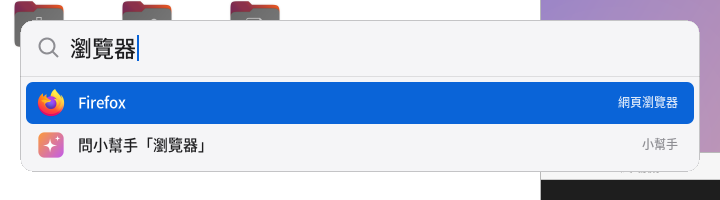
- Search (Super+Space)
- Just type to find apps, files and commands, or do math directly.
- Type a question and choose "Ask the assistant" to hand it to Pomi.
- Windows
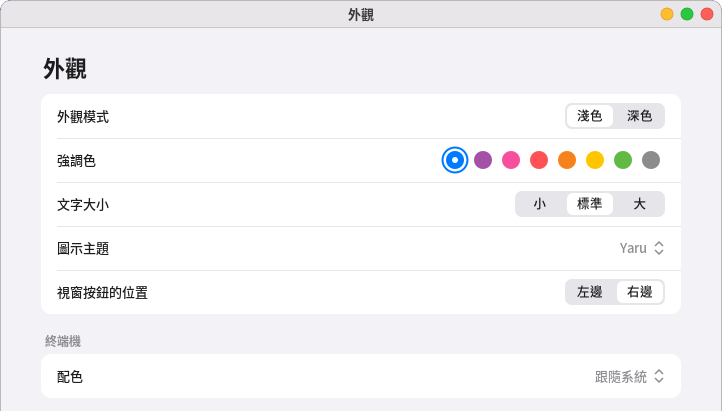
- The minimize, maximize and close buttons are at the top right. To move them back to the left: "Settings → Appearance → Window button position".
- Double-click the title bar to maximize or restore.
- Super+Tab shows all windows.
Super is the Windows key on your keyboard.
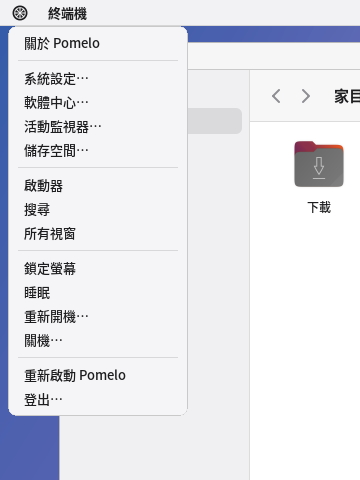
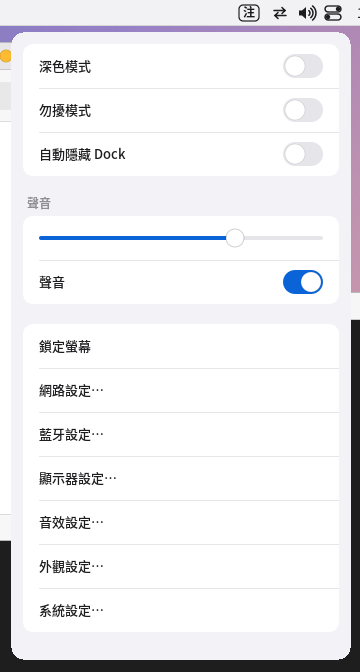
Left: the Pomelo menu at the top left. Right: Control Center.
5. Keyboard shortcuts
| Keys | Action |
|---|---|
| Super+Space | Search (apps, files, commands; Chinese input works) |
| Super+A | Launcher (all apps) |
| Super+Tab | Overview of all windows |
| Alt+Tab | Switch windows |
| Super+Return | Terminal |
| Super+Q | Close window |
| Super+M | Minimize |
| Super+↑ / Super+↓ | Maximize / Restore |
| Super+← / Super+→ | Snap to the left / right half |
| Super+Ctrl+F | Full screen |
| Super+L | Lock screen |
| Super+Shift+Space | Call the Pomi assistant |
| Super+Shift+3 | Capture the whole screen (saved to Pictures) |
| Super+Shift+4 | Drag to capture an area (press Space to pick a window instead) |
| Super+Shift+5 | Screenshot and recording toolbar |
| Add Ctrl when capturing | Copy to the clipboard only, without saving a file |
| Play/Pause, Previous, Next keys | Control the media player |
| Calculator key | Open the calculator |
| Super+Shift+R | Restart Pomelo (when the menu bar or Dock misbehaves) |
| Super+Shift+Q | Log out |
6. Settings
Open it from the Pomelo menu at the top left → "Settings…". It contains:
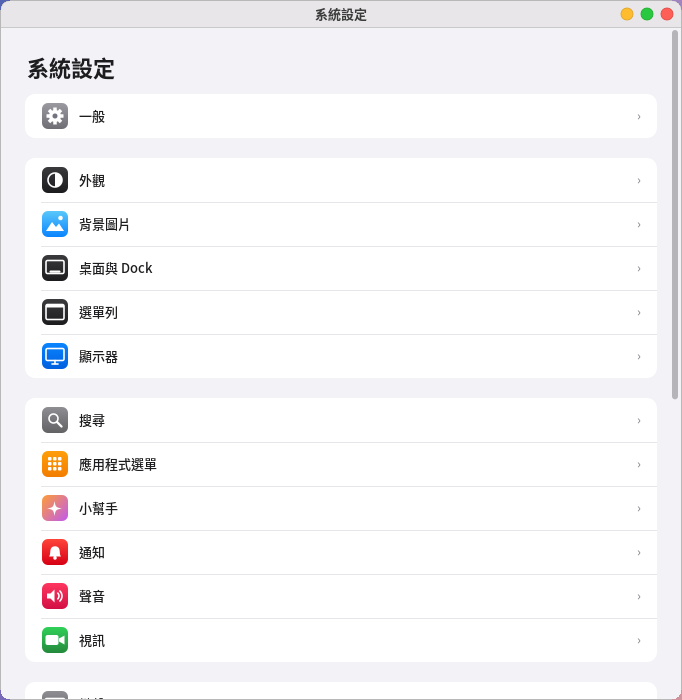
- General: About This Computer, Software Update, Storage, Date & Time, Devices.
- Appearance: dark mode, accent color, text size, window button position.
- Wallpaper, Desktop & Dock, Menu Bar (including editing the Pomelo menu at the top left).
- Displays: resolution, rotation, multi-monitor arrangement. If you don't click "Keep" within 15 seconds after a change, it reverts automatically.
- Search, Application Menu (edit the apps shown in the launcher and search), Assistant, Notifications.
- Sound, Camera (webcam), Keyboard, Mouse & Touchpad, Screen Time.
- Users & Groups, Login Screen, Printers & Scanners, Network, Bluetooth, Power.
Settings that need administrator rights pop up a password dialog.
7. Chinese input (Zhuyin)
Pomelo comes with its own Zhuyin input method. It works right after installation; there's no need to install fcitx or ibus.
- Switching Chinese/English: tap Shift once, or press Ctrl+Space. The right side of the menu bar shows "注" (Chinese) or "英" (English).
- Choosing characters: after typing Zhuyin, press Space or ↓ to open the candidates, press 1–9 to pick one, and press Enter to commit.
- Full-width / half-width: Shift+Space.
- Settings: "Settings → Language & Input", where you can choose the Zhuyin keyboard layout (Standard, Hsu, Eten, Pinyin…).
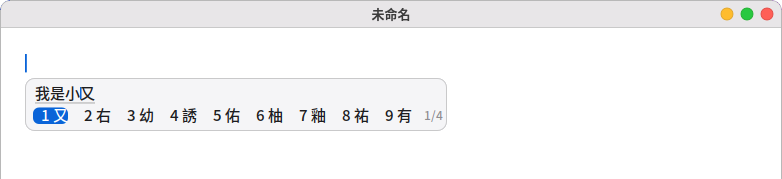
Limitation: Qt apps (such as VLC and VirtualBox) don't support this input method. To type Chinese in those apps, use
Fcitx 5 (sudo apt install fcitx5 fcitx5-chewing) instead, then set the input method framework to Fcitx 5 in "Language & Input".
Interface language:
- Switch it in "Language & Input"; it takes effect after you log in again. 14 languages are available: Traditional Chinese, English, Simplified Chinese, Japanese, Korean, French, German, Spanish, Italian, Brazilian Portuguese, Russian, Vietnamese, Thai and Indonesian.
- If a language isn't set up on the system yet, a terminal opens and generates it with
sudo locale-gen.
8. The Pomi assistant
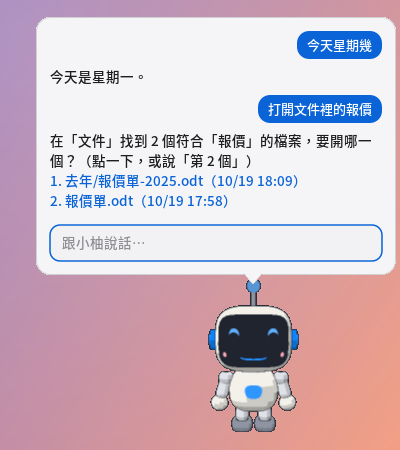
Pomi is a little robot that walks around your desktop, powered by an AI that runs on your own computer. What you say is never sent to the internet; it only goes online to check the weather or to search in your browser.
- First use: go to "Settings → Assistant" and click "Download" to get the AI model.
- The light model is about 1.1 GB; computers with 12 GB of memory or more use the standard model by default, about 2.5 GB.
- You only need to download it once.
- Calling Pomi: click it, press Super+Shift+Space, or type a question in Search and choose "Ask the assistant".
- Quick commands: common phrases are carried out instantly, without waiting for the model. For example (translated here; quick commands currently understand mainly Chinese phrasing):
- Open apps, websites and files: "Open the terminal", "Open the browser and go to Yahoo", "Open the quote in Documents", "Open the to-do document"
- Close or switch apps: "Close the terminal", "Shut the browser", "Switch to Firefox", "Minimize the calculator" (if an app has several windows open, they all close)
- Add text to the end of a text file: "Add buy milk to the end of todo.txt", "Add 'pay the phone bill' to the end of my to-do list"; if you only say "add some text at the bottom of document a", Pomi asks what to add. "This file" means the file you're viewing in the text editor.
- Change settings: "Set the volume to 30", "Turn on dark mode"
- Reminders and questions: "Remind me to take a break in 10 minutes", "What day is it today", "Weather in Taipei"
- Greetings and simple questions: "Hello", "Who are you", "Which model are you", "What can you do", "Thanks"
- When several files match, Pomi lists them; click one or say "the second one" to open it.
- Harder questions: everything else is answered by the model, usually in about 1–5 seconds on an ordinary computer.
- File actions ask first: before creating a file, adding text to its end, copying, moving or moving it to the Trash, a confirmation dialog appears.
- It never overwrites existing files and never deletes anything outright.
- Text can only be added to the end of plain text files (.txt, .md and the like); Word and PDF files can't be changed yet. If the file has unsaved changes in the text editor, Pomi asks you to save first.
- Style and sound: in the assistant settings you can choose:
- Six color schemes, each with a dark version.
- Eye color and sound effects.
- Reading answers aloud. The first time, about 90 MB of offline voices are downloaded. The Chinese voice is a female voice with a mainland accent; Japanese and Thai have no offline voice yet.
9. Screenshots and screen recording
- Super+Shift+3: the whole screen.
- Super+Shift+4: a selected area.
- Super+Shift+5: the toolbar (including recording).
Screenshots are saved to the Pictures folder, and recordings are saved as MP4 in the Videos folder. After a screenshot, a thumbnail appears at the bottom right; click it to open.

Recording needs ffmpeg. You'll be asked the first time you record; click "Install" and a terminal opens to install it
(ffmpeg).
10. Text editor, calculator, image viewer, media player and PDF reader
These apps are in the launcher. Double-clicking a text file, photo, music, video or PDF in the file manager also opens them automatically.
Text editor
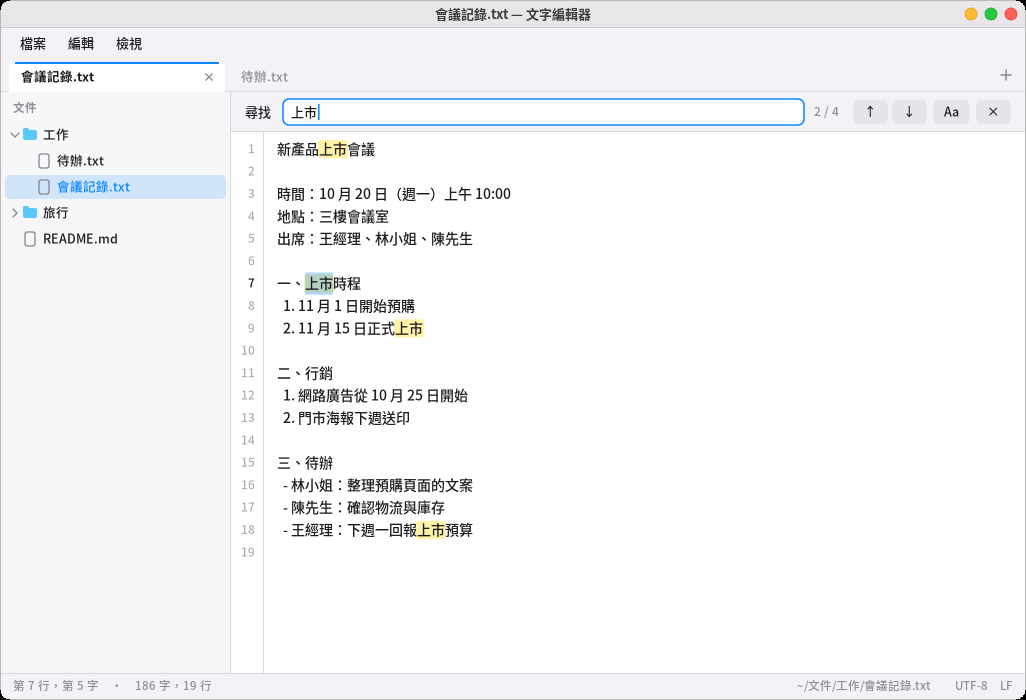
- The menu bar at the top has "File", "Edit" and "View" (you can also press Alt+F/E/V or F10, and switch menus with ←/→).
- One tab per file: Ctrl+N new tab, Ctrl+W close, Ctrl+Tab switch, Alt+1–9 jump to a tab. Text files opened from the file manager are added to the same window; for a separate window, use "File → New Window".
- The file list on the left is a folder tree; click a file to open it, or right-click to create a new file in a folder. Ctrl+B shows or hides it; drag the edge to change its width.
- Find and replace: Ctrl+F finds (every match is highlighted, with "n of total"; Aa toggles case sensitivity), F3/Shift+F3 next/previous, Ctrl+H replaces ("Replace" changes the current match, "Replace All" changes them all at once, and Ctrl+Z undoes a mistake).
- Other: Ctrl+A select all, Ctrl+L go to line, Ctrl+O open a file (Tab completes paths), Ctrl+plus/minus font size; in "View" you can turn off word wrap and line numbers, or switch to a monospace font.
- Old Big5 text files are converted to correct Chinese automatically and saved back as Big5; files with Windows line endings (CRLF) are saved as CRLF too.
- If another program changes the file (for example, Pomi adds text at the end), unmodified tabs reload automatically, and Ctrl+Z takes you back to the previous content; if you also have unsaved changes, a notice below warns you that "saving will overwrite changes made elsewhere".
Calculator
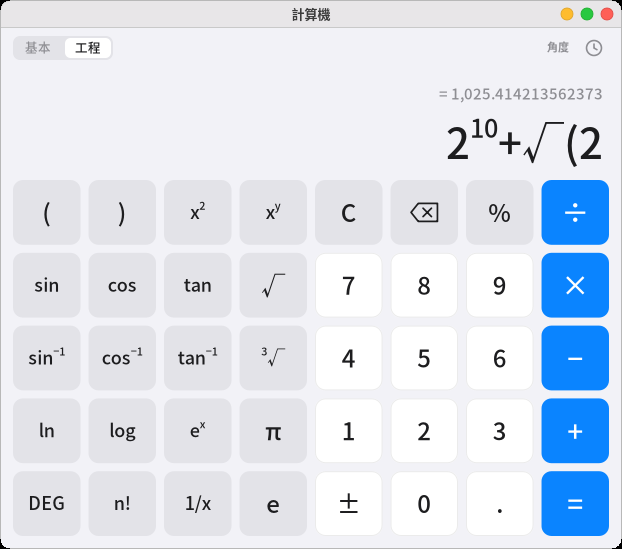
- Type a whole expression on the keyboard, such as
12*(3+4); the line above shows the result as you type, and Enter or = confirms it. - "Basic/Scientific" switch: scientific mode adds parentheses, powers, roots, trigonometric functions, logarithms, factorials and π; the top right shows whether degrees or radians are in use (click DEG/RAD to switch).
200+10%gives 220 (200 plus 10% of 200).- The clock icon at the top right is the history; click an entry to reuse its result. Ctrl+C copies the result, and Ctrl+V pastes an expression.
Image viewer
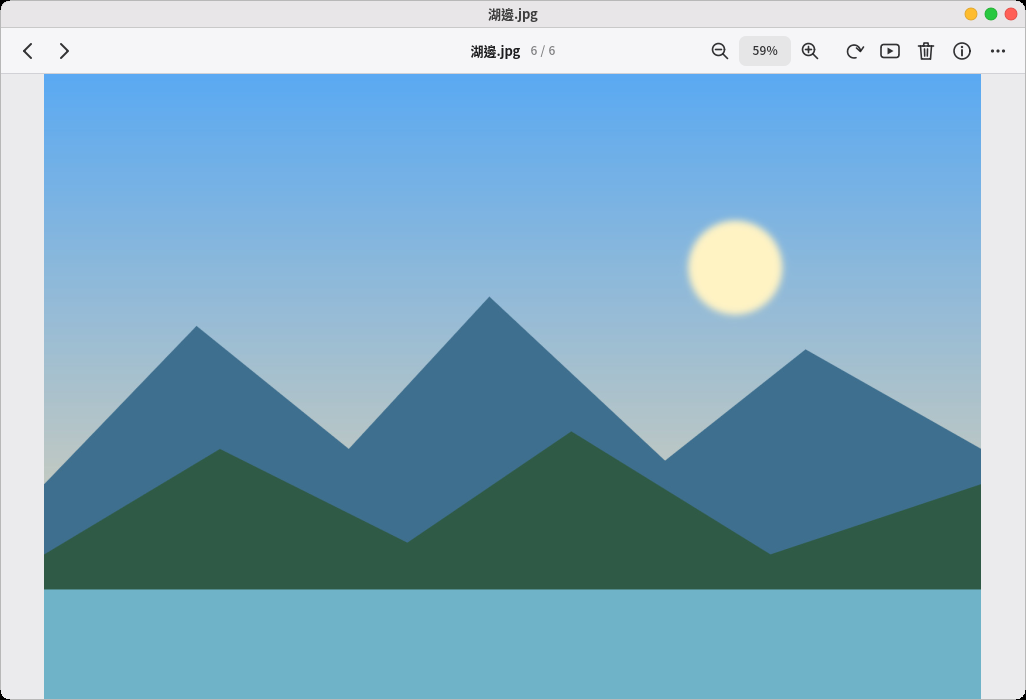
- Supports PNG, JPEG, GIF and WebP (including animations), and BMP. Portrait photos taken with phones are turned upright automatically.
- ←/→ show the previous/next image in the same folder; scroll to zoom, drag to move, and double-click to switch between "Fit to window" and "Actual size".
- F full screen, S slideshow, R rotate, I photo info (date taken, camera model, aperture and shutter).
- Delete moves the image to the Trash, and Ctrl+Z undoes it right away. The right-click menu also has "Copy Image" and "Set as Wallpaper".
- iPhone HEIC photos and AVIF: the first time you open one, an "Install" button appears; it installs libheif (about 5 packages), and the image appears when you return to the window.
- TIFF and SVG aren't supported yet.
Media player
-
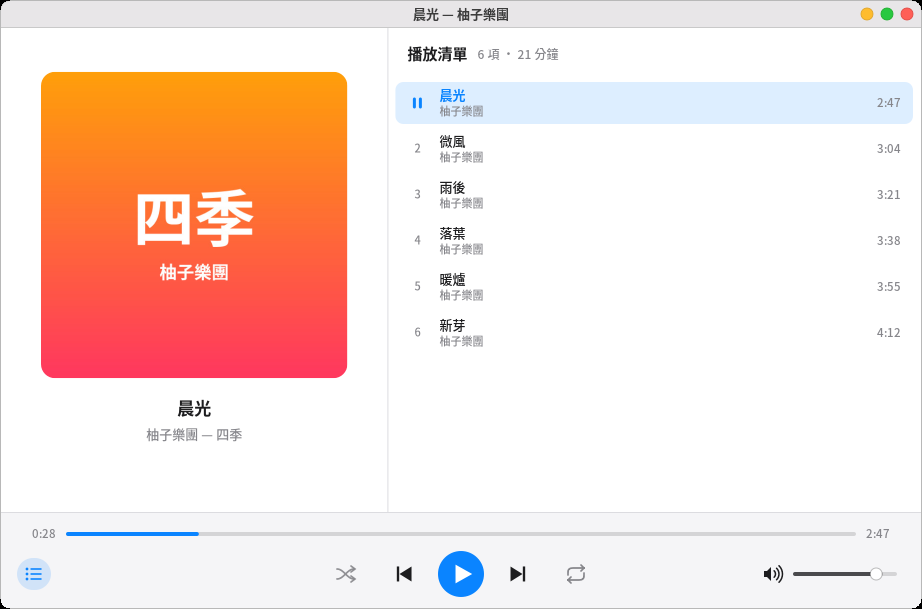
Double-click music or a video in the file manager to start playing. Right-click a folder and choose "Play with Media Player" to turn the whole folder (including subfolders) into a playlist.
-
Only one player is open at a time: opening another file hands it to the player that's already running.
-
Space play/pause, ←/→ back/forward 5 seconds (30 seconds with Shift), ↑/↓ volume, N/P next/previous track, F full screen (video), L show or hide the playlist.
-
Shuffle and repeat (whole list / this track) are at the bottom. Close and reopen it, and it continues from the last playlist and position.
-
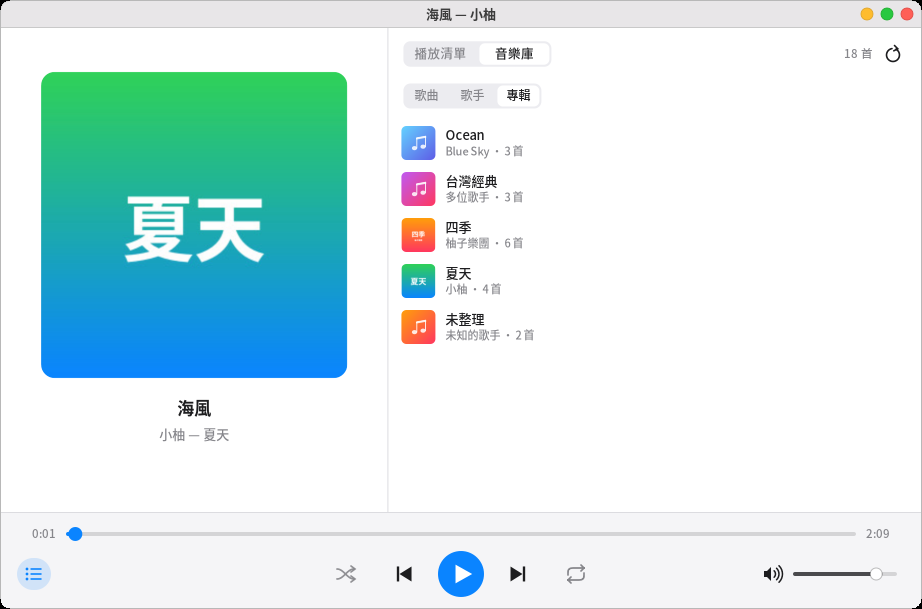
Music library: switch to "Library" above the list on the right; it organizes your Music folder (including subfolders) automatically, and you can browse by "Songs", "Artists" or "Albums". Open an artist or album to list its songs; click "Play All" or double-click a song to start, or right-click to "Add to Playlist". The first scan takes a little while; after that only new or changed files are read again. After adding new music, click the refresh button at the top right. Album covers come from
cover.jpgin the folder. -
While playing, a music note appears in the top menu bar; click it to pause or change tracks. The play/pause, previous and next keys on your keyboard work too. You can also tell Pomi "next track", "pause the music" or "play music".
-
MP3, FLAC, Ogg, Opus and WAV play right away. M4A/AAC and videos need ffmpeg; the first time you open one, an "Install ffmpeg" button appears (
ffmpeg, which recording uses too). -
Subtitles: an
.srtfile with the same name next to the video (such asmovie.srtormovie.zh-TW.srt), or text subtitles embedded in MKV or MP4, are shown automatically (Chinese preferred); old Big5 subtitles work too. Press V to cycle through the subtitles and "Off", or right-click the video to pick one. Image-based subtitles from DVD and Blu-ray aren't supported yet. -
The screen doesn't dim or lock while a video is playing.
PDF reader
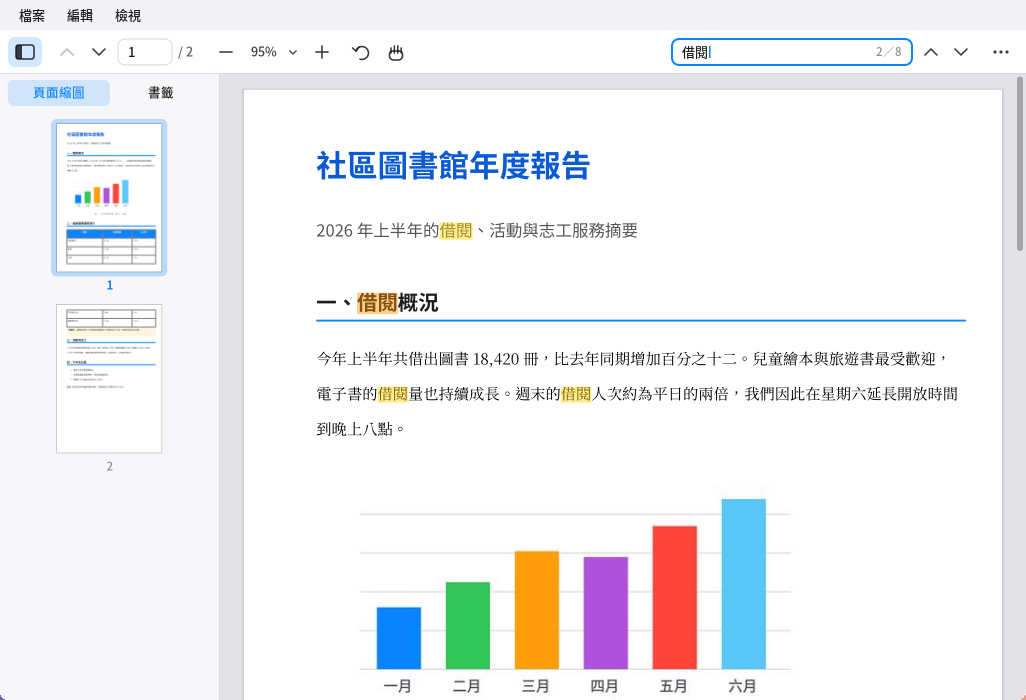
- Double-click a PDF in the file manager to open it; opening another PDF adds a new tab to the same window. The next time you open the same file, it returns to the page you were reading.
- The sidebar on the left switches between "Thumbnails" and "Bookmarks" (F4 shows or hides it); click an entry to jump there, and drag the edge to change its width.
- Toolbar at the top: previous/next page, page number (click it, type a page number and press Enter to go there), zoom out/zoom level/zoom in (click the level for "Fit Width" or "Fit Page"), rotate, hand tool and search.
- Drag with the mouse to select text; double-click selects a word and triple-click a whole line; Ctrl+C copies. Hold the middle mouse button (or use the hand tool) to drag the page.
- Ctrl+F search: matches are highlighted in yellow and the current one in orange, with "n of total" on the right; Enter or F3 for next, Shift+Enter for previous. English is case-insensitive, and full-width letters and digits are found too.
- Links in the document: links within the document jump straight there; for web addresses you're asked first whether to open them in the browser.
- Password-protected PDFs ask for the password first. Restrictions set by the author, such as "no printing" or "no copying", are respected.
- Zoom: Ctrl+scroll wheel, Ctrl+plus/minus; Ctrl+0 fit page, Ctrl+1 actual size, Ctrl+2 fit width. Ctrl+Shift+plus/minus rotates.
- Other: Ctrl+P print (needs CUPS and a printer), Ctrl+D document properties (author, creator, page size…), F11 full screen (PageDown/Space moves one page at a time).
- JPEG 2000 and JBIG2 images, common in scanned documents, need the
libopenjp2andjbig2declibraries (suggested during installation); without them, those images show as gray boxes.
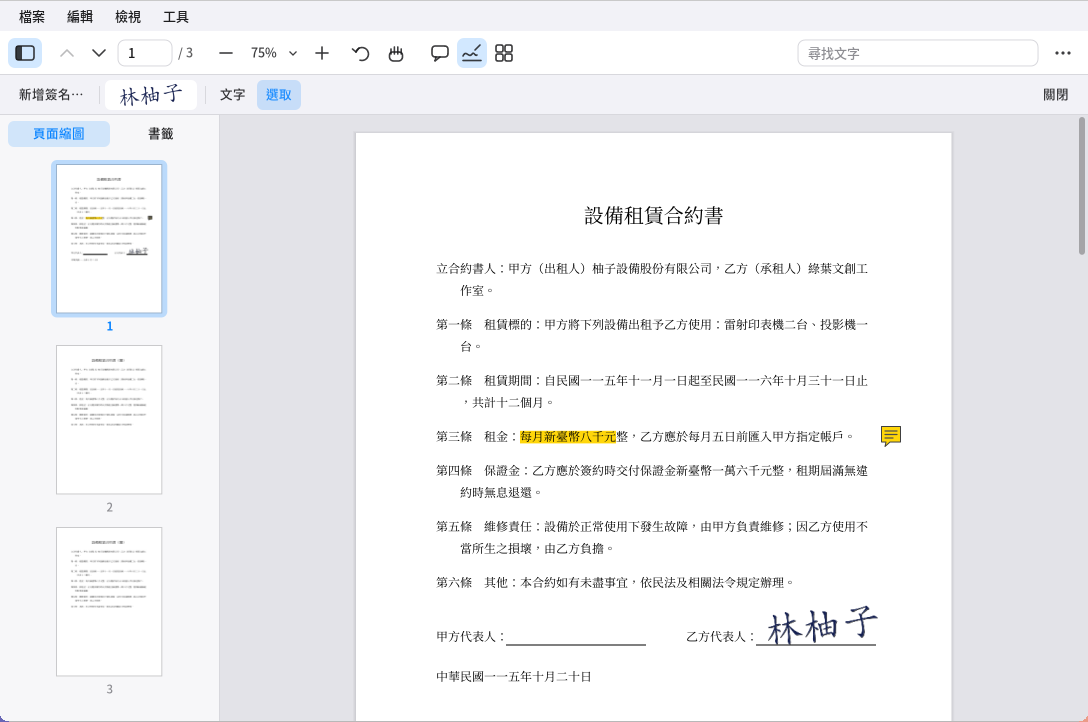
Editing PDFs: the four buttons next to the hand tool on the toolbar (Annotate, Fill & Sign, Organize Pages, Edit Content; also in the "Tools" menu) add a row of tools below. A changed document shows "•" before its tab name; remember to save with Ctrl+S (Ctrl+Shift+S saves as a new file); Ctrl+Z undoes and Ctrl+Shift+Z redoes. If you close it without saving, you're asked whether to save.
-
Annotate:
- Highlight, underline, strikethrough: choose the tool and drag over the text. You can also select text first and right-click "Highlight".
- Sticky note: click the page and write (Enter for a new line, Ctrl+Enter to finish). Click a note's icon to show its content beside it; double-click to edit it.
- Text: click the page and type directly on it (large, medium or small).
- Pen, rectangle, ellipse, line, arrow: drag on the page. Choose the color and thickness on the right.
- Click an annotation with the "Select" tool to drag it, drag its bottom-right corner to resize it, or press Delete to remove it; right-click for a menu.
-
Fill & Sign:
- Click "New Signature…", sign in the box with the mouse and click "Save"; or click "From Image…" to use a photo of your signature (the white background is removed automatically).
- Saved signatures appear on the toolbar; click one, then click the page to place it. Once placed, drag to move it, or drag the bottom-right corner to resize it (keeping its proportions).
Right-click a signature on the toolbar to delete it. Signatures are stored in your home folder (
~/.local/share/pomelo/signatures), where only you can see them. - "Text" fills in the blanks on forms.
- This places a picture of your signature on the page, which anyone could copy; to prove "I signed this, and it hasn't been changed since", use a digital signature (below).
-
Digital signatures (signing with a digital ID proves the document hasn't been changed since it was signed):
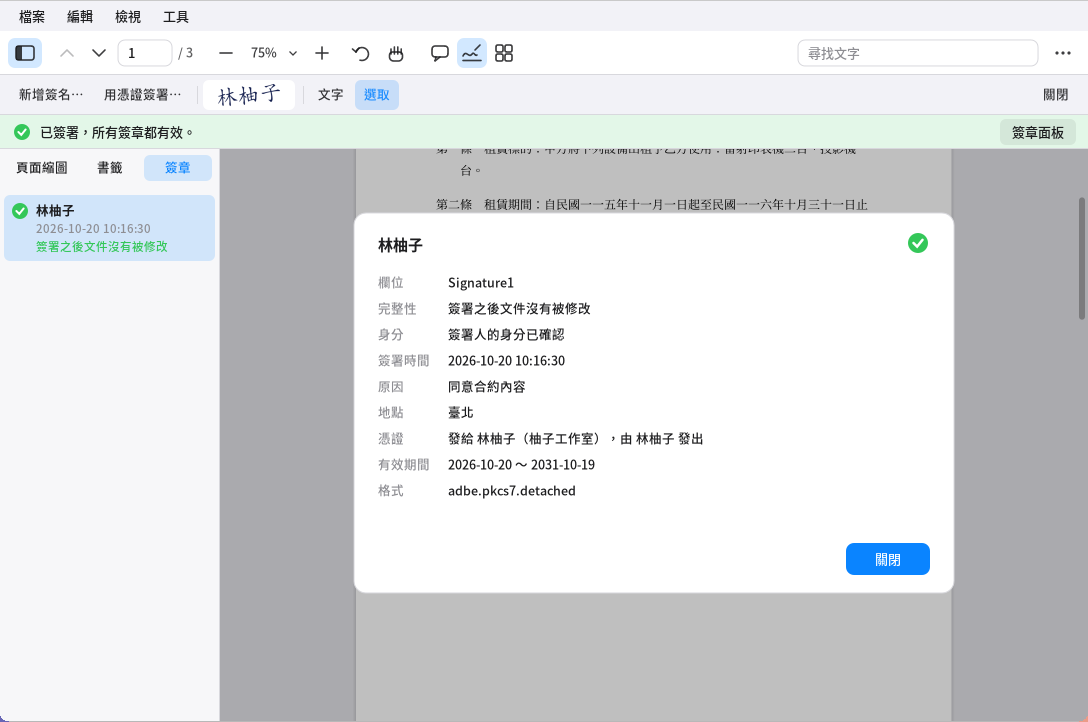
Digital signatures in the PDF reader: status bar at the top, signature panel and details on the left - "Sign with Certificate…" in Fill & Sign (or the "Tools" menu): choose a digital ID, enter its password and click "Next", drag out the signature area on the page (a single click uses the default size), add a reason and location (optional), and click "Sign and Save". If you have a saved handwritten signature, it's added to the appearance; the file is saved right after signing.
- If the document has an empty signature field (a dashed box saying "Click here to sign"), just click it to sign there.
- Digital IDs:
- If you don't have one, click "Create New…" and enter a name, email address and password (at least 6 characters). A self-created ID proves the document hasn't been changed since signing, but others can't confirm it's really you (like a seal that hasn't been notarized).
- A .p12/.pfx file issued by your company or a certificate authority can be added with "Import…".
- Digital IDs are stored in your home folder (
~/.local/share/pomelo/digital-ids). Their passwords are never remembered; if you forget one, the ID can't be used.
- When you open a signed document, a status bar appears at the top: green = all signatures are valid; yellow = the signatures are valid but the signer's identity can't be confirmed, or the page content was changed after signing; red = a signature is invalid (the document was tampered with after signing). Click "Signature Panel" to list all signatures on the left, and click one for its details: signing time, reason, who issued the certificate, and "View Signed Version".
- Adding annotations, highlights or other people's signatures after signing keeps the original signatures valid; organizing pages (deleting, reordering, inserting) would invalidate them, so the original signatures are removed (Ctrl+Z undoes this before you save).
- When you're sure a certificate really belongs to the other person, click "Trust This Certificate" in the signature details; documents they sign will then show "Identity confirmed".
-
Organize Pages: shows thumbnails of all pages. Click to select (Ctrl+click to add, Shift+click for a range) and drag to reorder; the top has rotate left/right, delete (or press Delete), extract (turn the selected pages into a new document), insert file (after the selected pages) and insert blank page. Double-click a page to return to the reading view at that page.
-
Merge Files (Tools → Merge Files…): click "Add File…" and enter a path (Tab completes it), set the order with ↑↓, and click "Merge" to get a new tab; each original file gets its own bookmark. The original files aren't changed. Files with an open password must be opened in a tab before they can be merged.
-
Add Page Numbers (Tools → Add Page Numbers…): choose the format (such as "Page 1 of 9"), position, font size, first number, and the page to start from (handy for skipping a cover).
-
Edit Content (change the existing text on a page, remove watermarks):
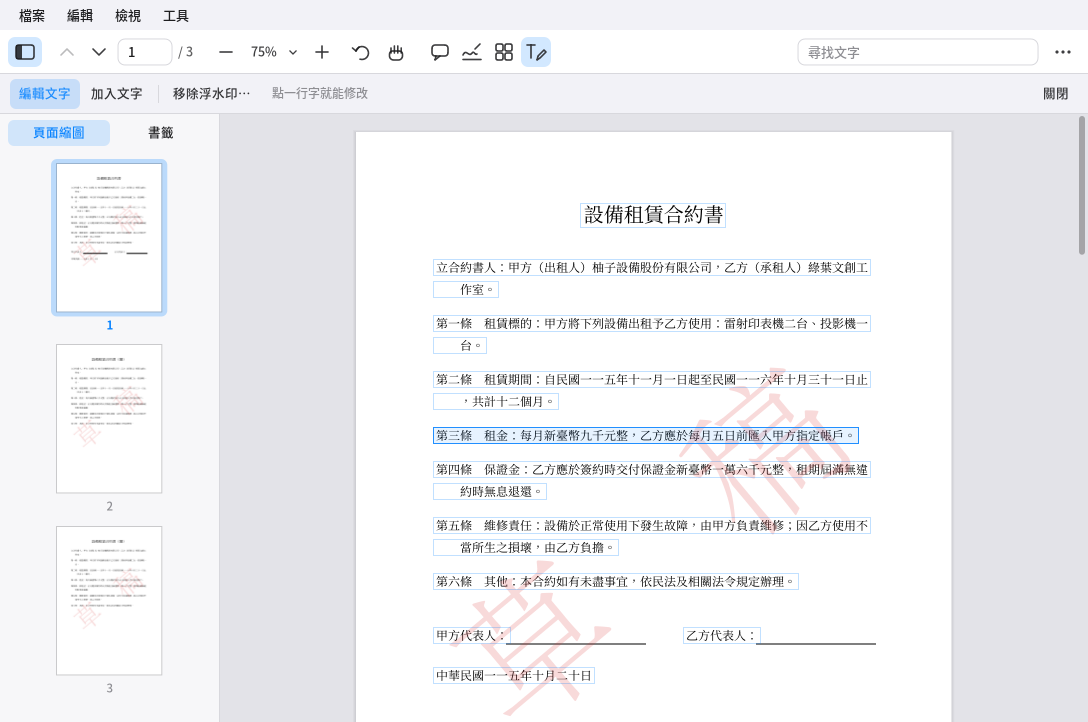
Edit Content in the PDF reader: every line of text has a box; click it to edit -
Edit text: move the mouse over the page, and every editable line of text gets a faint box. Click a line, change the text in the box that appears, and press Enter to finish; clearing all the text deletes the line. The font defaults to "Auto": the closest match to the original (Ming, Kai or Hei, and bold stays bold); you can also choose Hei, Ming, Kai or bold under the box (changing only the font is fine too). The new text goes where the old text was, and the rest of the line shifts along. Edited text can be selected, searched and copied.
-
Add text: choose a color and size, click where the text should go (the click marks the top left of the first line), type, then press Ctrl+Enter (Enter for a new line); under the box you can choose a font (Hei, Ming, Kai) and bold, which are remembered next time. Unlike "Text" in Annotate, this is written into the page content itself: it can be selected and searched, and nobody can delete it as an annotation.
-
Remove watermarks: click "Remove Watermarks…" to list everything in the document that might be a watermark (such as large slanted translucent text, the same image on every page, headers and footers) and how many pages each appears on; items that are clearly watermarks are already checked. Confirm and click "Remove".
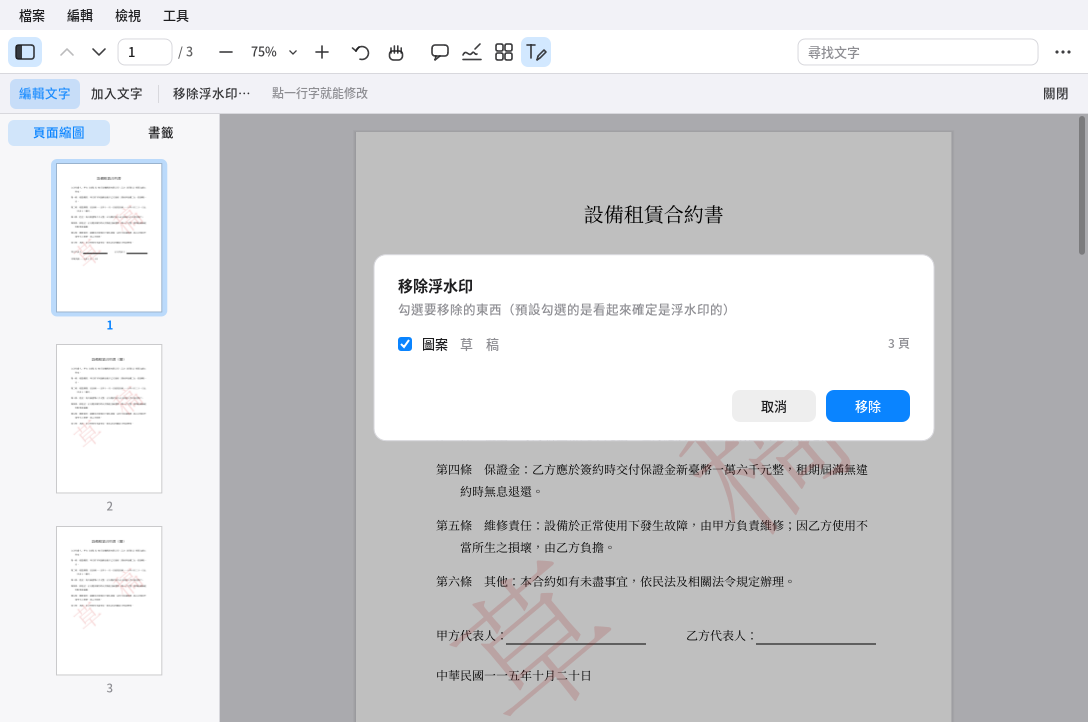
Removing watermarks in the PDF reader: check the items to remove -
If you change the content of a digitally signed document, the signature shows "Content modified after signing". Ctrl+Z undoes mistakes.
-
-
Documents with an open password keep the same password after saving; documents where the author restricted changes need the owner password before you can edit them.
-
Saving appends your changes to the end of the original file (organizing pages and merging write a new file instead), and other PDF readers open it normally and show the annotations and signatures.
11. Software and updates
- Software Center ("Software Center" in the launcher):
- "Explore" recommends popular software by category.
- You can also search the whole package repository, for example for chrome, zoom or python.
- "Installed" lets you remove programs installed with apt or Snap.
- System updates: "Settings → General → Software Update" checks for and installs all updates.
- On the same page you can turn on "Check for updates daily" and "Install security updates automatically".
- Or use the command line:
sudo apt update && sudo apt upgrade
12. Files, external devices and passwords
- File manager (the folder icon in the Dock):
- Common actions: Ctrl+C/X/V copy, cut and paste; F2 rename; Delete moves to the Trash; Ctrl+F search.
- External devices: USB drives are mounted automatically, with a notification. A ⏏ icon appears in the menu bar; click it before unplugging.
- Storage ("Settings → General → Storage"):
- See disk usage and drive health.
- One-click cleanup: Trash, thumbnail cache, package cache, packages no longer needed, system logs.
- Keyring: keeps passwords for apps such as Chrome and VS Code, encrypted with your login password.
- It unlocks automatically whichever login screen you use.
13. Troubleshooting
Black screen after login, or you can't log in
- Press Ctrl+Alt+F3 and log in on the text console.
- If you're using the Pomelo login screen, run
sudo pomelo-dm-switch off, thensudo reboot. - Or choose another session on your original login screen.
The menu bar or Dock is missing or acting strangely Press Super+Shift+R to restart Pomelo; your open apps won't be closed.
Chinese text shows up as boxes
Install Chinese fonts:
sudo apt install fonts-noto-cjk
A "program error" report dialog keeps popping up
The reports are in /var/crash/; delete them and the dialog stops appearing, for example:
rm /var/crash/_usr_bin_pomelo-panel.*.crash
Please tell us what happened.
Finding the cause of a problem
- When you log in with the Pomelo login screen, Pomelo's messages are written to
~/.xsession-errors. - With other login screens, look at
~/.xsession-errorsorjournalctl --user -b. journalctl -bshows the system log for the current boot.
14. Uninstalling
sudo apt remove 'pomelo-*' libpomelo0 libpomelo-dev
If you're using the Pomelo login screen, removing Pomelo automatically switches back to your original login manager.
Your personal settings are in ~/.config/pomelo, and the assistant's models and voices are in ~/.local/share/pomelo. Delete them yourself if you no longer need them.
15. Known limitations
- X11 only; Wayland isn't supported.
- No window shadows or animations. You can install
picomseparately to add them. - The file manager doesn't support drag and drop yet.
- The system tray only supports the classic XEmbed protocol. Apps that only use the newer AppIndicator won't show an icon in the menu bar.
- The terminal doesn't support color emoji.
- The PDF reader can't yet: fill in form fields (coming in a later version). Text is edited line by line without automatic wrapping, so longer text can run over things to its right (such as the next table cell); vertical text and text inside form objects can't be edited yet. A watermark that's part of the same image as the content (such as in a scanned document) can't be removed. Digital signatures only work with .p12/.pfx files, not with certificates on card readers (such as Taiwan's Citizen Digital Certificate); signing adds no timestamp, and verification doesn't check whether a certificate has been revoked. Taiwan government root certificates aren't in the system's trust list, so documents signed with government or Citizen Digital Certificates show "Issuer not in trust list". Text added with the annotation "Text" tool or with page numbers can't be selected or searched ("Add text" in "Edit Content" can). Punctuation in vertical text isn't converted to vertical forms; XFA dynamic forms (used by a few government forms) aren't supported.
16. License and third-party components
Pomelo is free software, licensed under the GNU General Public License version 3 or any later version (GPL-3.0-or-later). The full text is in the LICENSE file in the package
(after installation, in /usr/share/common-licenses/GPL-3 or /usr/share/licenses/). You're free to use, modify and distribute it;
if you distribute a modified version, you must use the same license and provide the source code. This software comes with no warranty.
Developer: pake@fedora.tw; organization: https://fedora.tw (bug reports and contact). The source code is pomelo-<version>-source.tar.gz, published alongside the packages;
you can also request it by email.
The following are downloaded only the first time you use the related feature and aren't included in the packages:
- The assistant's AI model: Qwen3-VL, Apache 2.0 license.
- Runtime: llama.cpp, MIT license.
- Offline voices:
- The Piper speech synthesizer is MIT licensed.
- The license of the dataset behind the Chinese voice "huayan" is listed as "unknown". Check it yourself before any commercial use.
Other components used in the interface:
- Icons: Yaru (CC-BY-SA 4.0) / Adwaita.
- Fonts: Noto CJK (SIL Open Font License).
- PDF reader: the PDF core is Pomelo's own code; the glyph name table comes from the Adobe Glyph List (BSD-3-Clause, full license text included in the package), and predefined CJK CMaps are read from the system's poppler-data (data only).